User Guide

Get started with PropQwik

Extract property data, generate AI-powered PPTs, and keep your workflow organized in just a few clicks.

Don't have the extension yet? Add to ChromeAdd to Edge

Step 1: Activate PropQwik

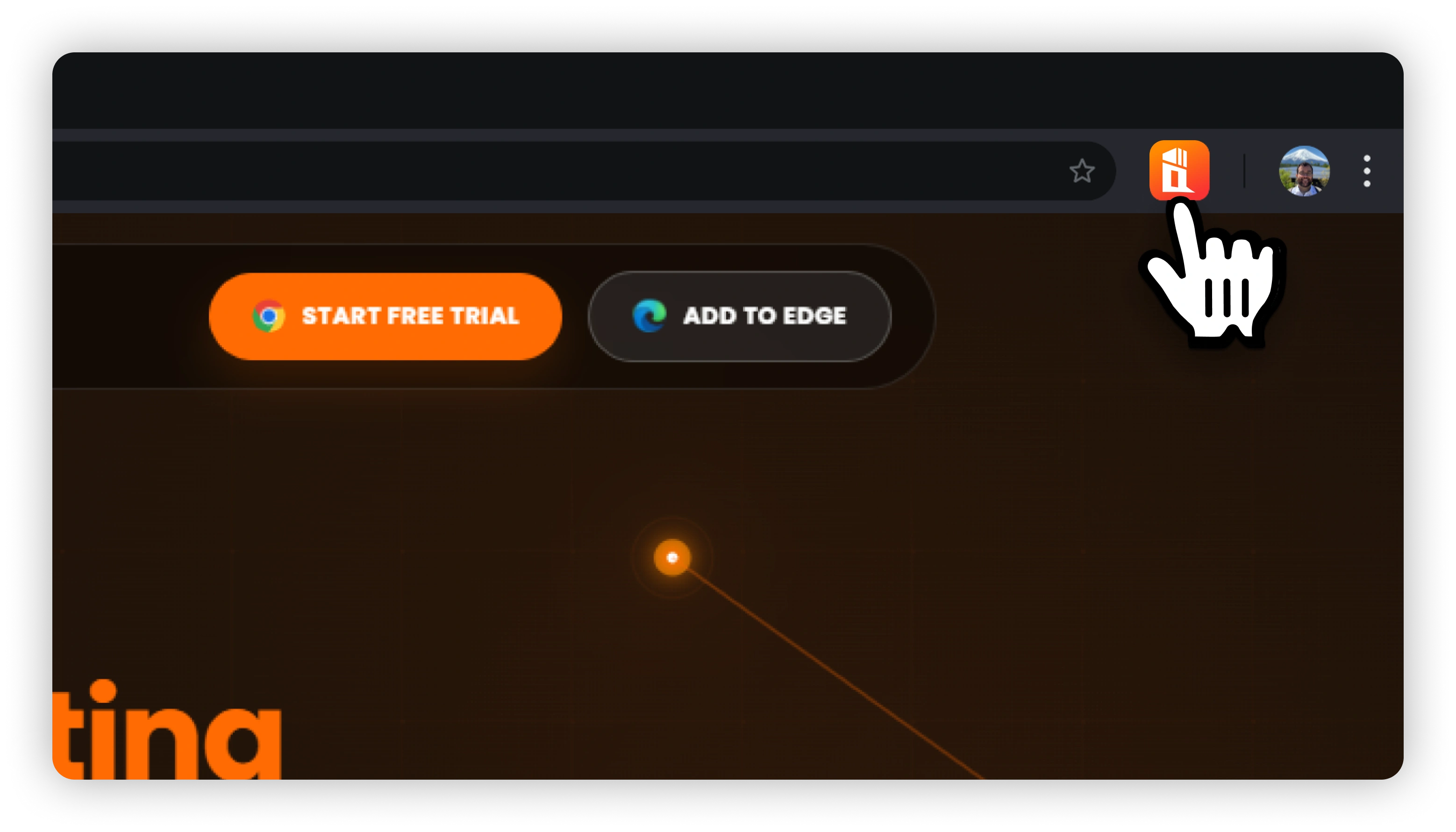
  1. Click the PropQwik extension icon from your Chrome toolbar.
  2. Pin the extension for quick access whenever you browse property platforms.
  3. Open the extension to start using PropQwik.
Step 1: Activate PropQwik

Step 2: Open a supported listing platform

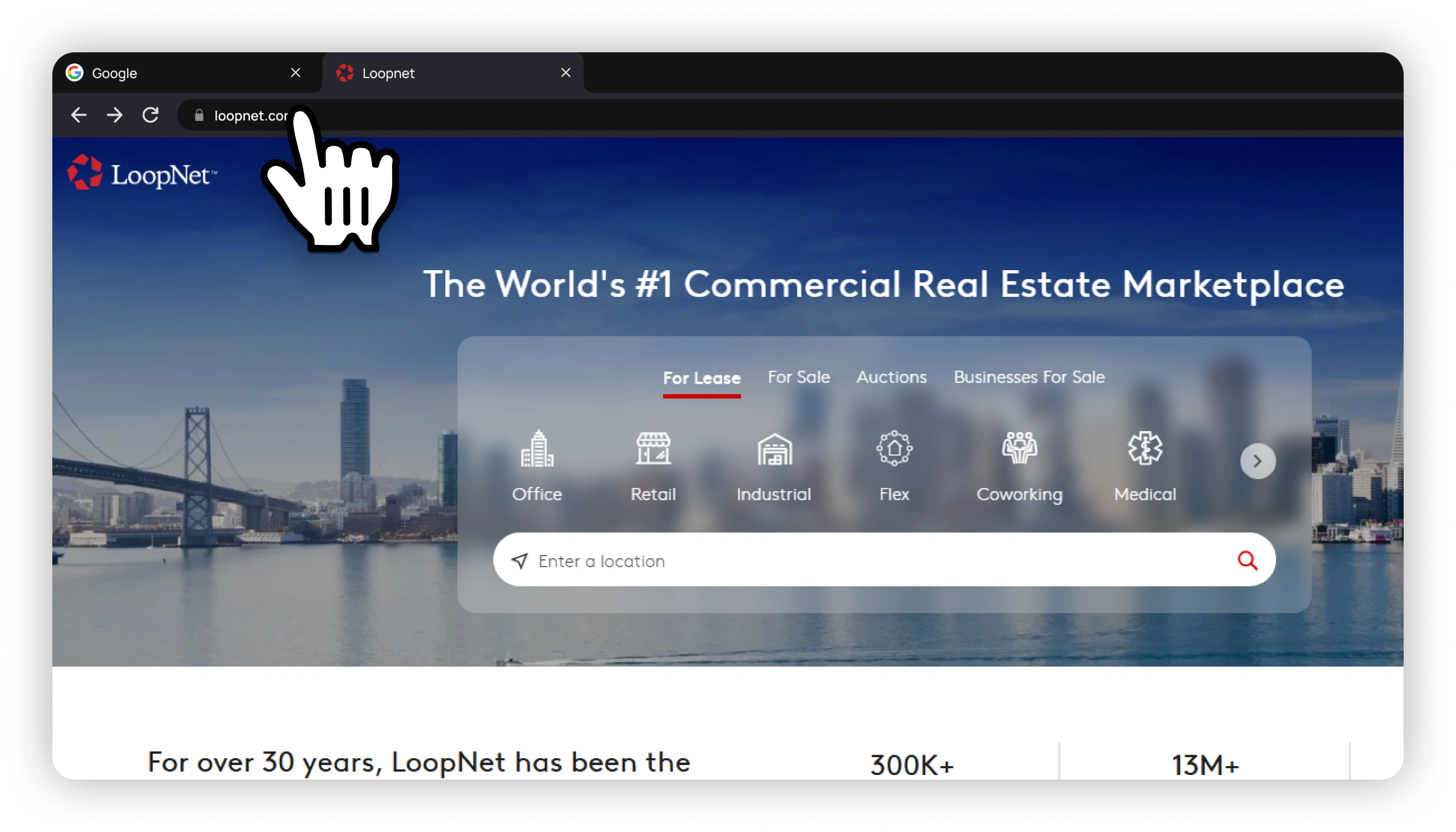
  1. Open any supported commercial real estate listing platform in your browser.
  2. Browse through the available property listings.
  3. Choose the property you want to review, extract, or prepare for presentation.

Note: PropQwik works with supported property listing platforms. Platform availability may vary based on extraction compatibility and supported page structure.
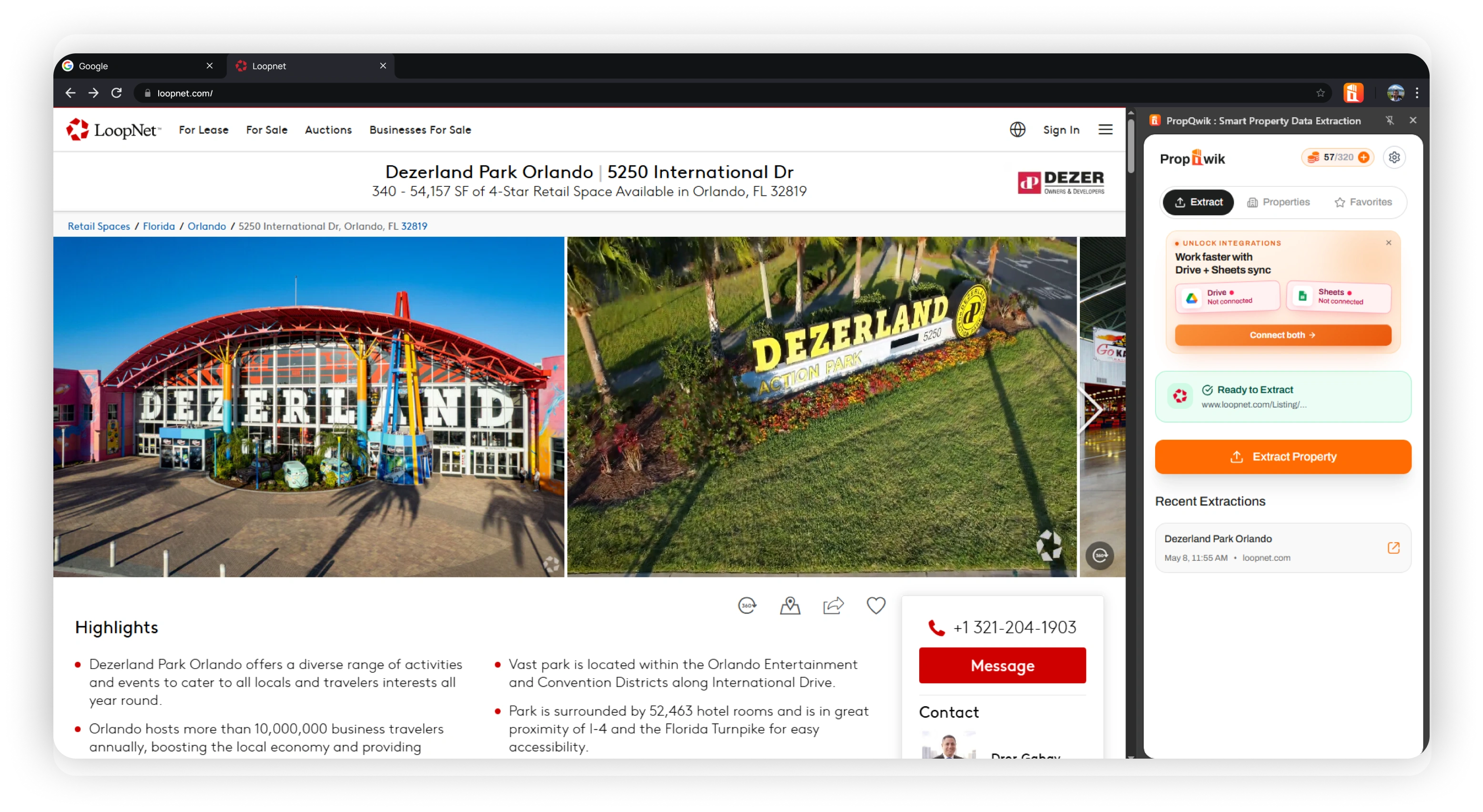
Step 2: Open a supported listing platform

Step 3: Open a property detail page

  1. Open the full property detail page for the selected listing.
  2. PropQwik will read the available listing details from the property detail page.
Step 3: Open a property detail page

Step 4: Extract data & generate PPT

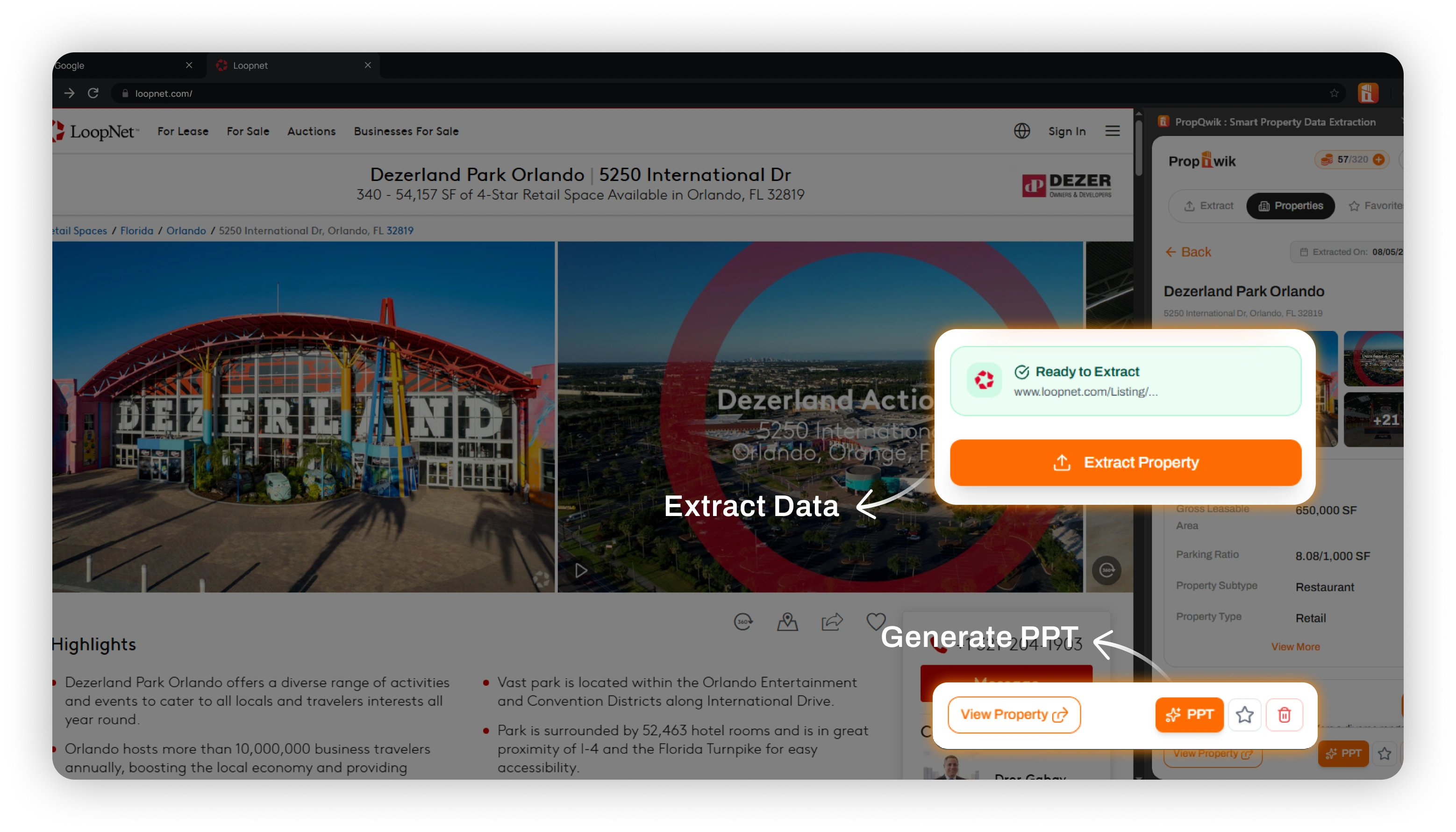
  1. Click Extract to capture property details from the page.
  2. Review the extracted property information inside PropQwik.
  3. Generate an AI-powered property PPT using the extracted data.
Step 4: Extract data & generate PPT

Step 5: Sync with Google Sheets & Drive

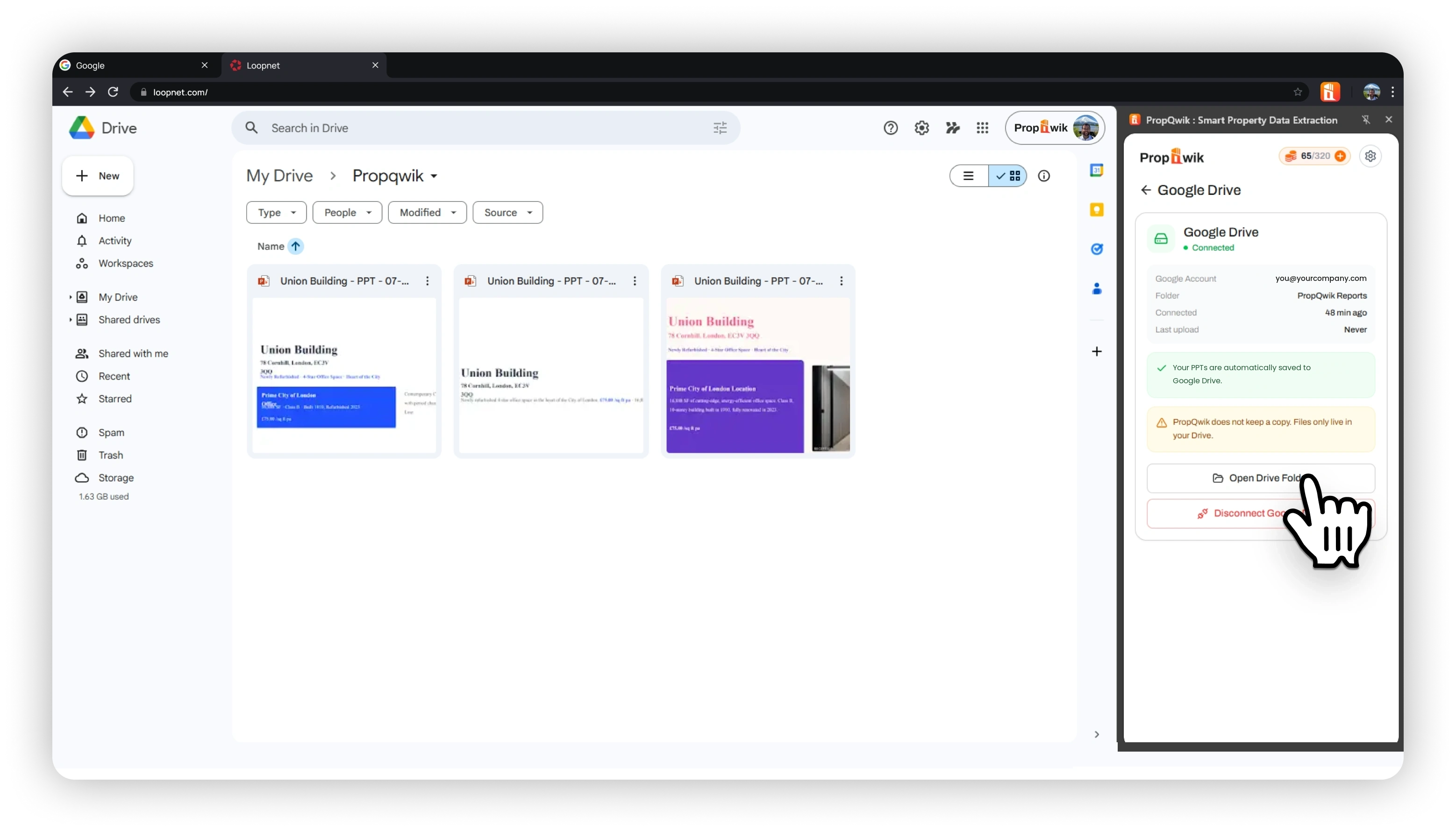
  1. Connect Google Sheets to send extracted property data automatically.
  2. Connect Google Drive to save AI-generated PPTs in your selected folder.
  3. Keep your property data and presentations organized without manual copy-paste or repeated downloads.
Step 5: Sync with Google Sheets & Drive